Effective date: 8 May 2026 Developer: Invite Services
Summary
EFB Companion is designed to work entirely on your device. It does not collect, transmit, or share any personal data. No account is required to use the app.
1. Information We Collect
We do not collect any personal information.
The app does not transmit any data to external servers, analytics platforms, or third parties. There are no user accounts, no sign-in, and no network communication initiated by the app.
Data stored on your device
All data created and used by the app remains exclusively on your device:
Screenshots and images you import from your photo library
Flight data extracted from those images via on-device OCR (e.g., flight numbers, airport codes, departure/arrival times, aircraft registration)
Templates you create to describe the layout of your documents
Export history tracking which flights have been exported and in what format
App preferences such as whether the import guidance screen has been dismissed
This data is stored in the app’s private container on your device and is not accessible to other apps (except as described in Section 3).
2. Photo Library Access
The app requests access to your photo library so you can select screenshots to import. Images are read from your library only when you explicitly choose them using the system photo picker. The app does not scan, index, or access photos you have not selected.
Photo library access can be managed at any time in Settings → Privacy & Security → Photos.
3. Data You Choose to Share
The app provides tools to export your flight data. Sharing is always user-initiated:
CSV export — generates a file containing your extracted flight data and presents it via the iOS Share Sheet. You choose where it goes (Files, Mail, AirDrop, etc.).
LogTen Pilot Logbook — if you have LogTen installed, the app can construct a deep link that opens LogTen with your flight data pre-filled. Data is passed directly to the LogTen app on your device; it is not sent to any server operated by this app’s developer.
No data is shared with the developer or any third party through these features.
4. Third-Party Services
EFB Companion does not integrate any third-party analytics, crash reporting, advertising, or tracking SDKs. There are no calls to external APIs or servers of any kind.
6. Data Retention and Deletion
All app data lives on your device. You can delete it at any time:
Individual flights — swipe left on a flight in the list and tap Delete, or select multiple flights and use the batch delete option.
All app data — delete the app from your device. This permanently removes all stored screenshots, templates, flight data, and preferences.
7. Your Rights
Because we do not collect or store any personal data on external systems, there is no data held by the developer to access, correct, or erase. If you have questions, you can contact us at the address below.
8. Changes to This Policy
If this policy changes materially, the updated version will be posted with a new effective date. Continued use of the app after an update constitutes acceptance of the revised policy.
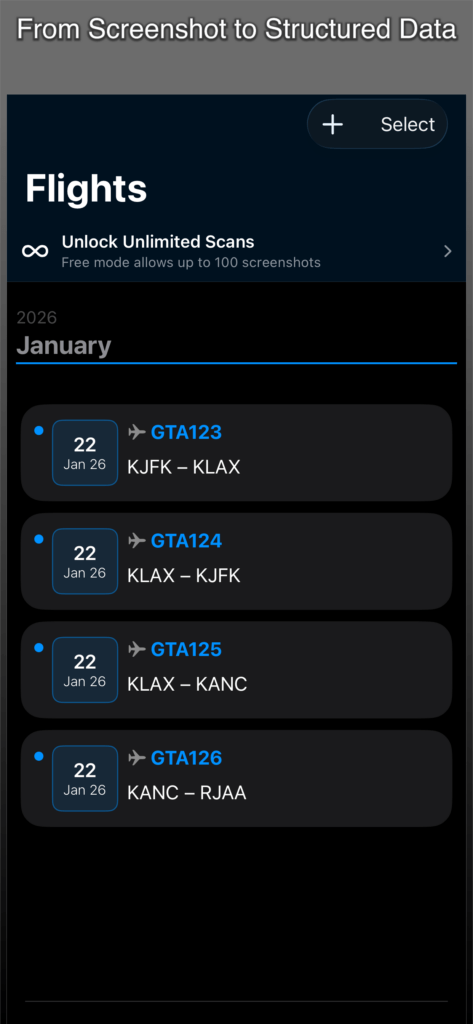
Every flight generates data — ACARS logs, FMC printouts, OOOI reports, Electronic Flight Bag screenshots. Did you ever wish there was an easy way to collect the data straight from the source to your logbook? EFB Companion makes this possible. Screenshot a document, and your flight entry is ready to review and export. No manual typing, no copying and pasting, no time wasted at your desk or logging into airline systems just to retrieve the same data in a structured format.
How It Works
Import a screenshot or photo of any flight document. EFB Companion recognises the document type, extracts your flight data using on-device OCR, and organises everything into a clean, reviewable entry — flight number, aircraft registration, route, departure and arrival times, crew names, and more. All processing happens on your device. NO accounts, NO login, NO sharing of data with third parties.
Works With Any Consistent Document Format
If your document looks the same from flight to flight, EFB Companion can read it. The built-in template editor lets you teach the app exactly where your data lives on the page — mark a few anchor points, select the field regions containing the data, and EFB Companion will extract your data reliably every time. Whether it’s a company-specific ACARS format, a bespoke OFP layout, or an FMC printout unique to your fleet, if it’s consistent, it works.
Key Features
Automatic document recognition and field extraction via Vision OCR
Support for flight number, registration, aircraft type, route, OOOI times, and up to 4 crew members
Duplicate detection based on flight data fingerprints
Export to CSV for any spreadsheet or records system
One-tap export to LogTen Pilot Logbook
Scans grouped by month for easy browsing
Fully on-device — your data never leaves your device
Who It’s For
EFB Companion is designed for line pilots and flight operations staff who regularly receive flight information as printed or digital document screenshots and need to maintain accurate, structured records without the overhead of manual data entry.
No Subscriptions!
EFB Companion does not require costly subscriptions. Import and scan up to 100 images for free. Unlock unlimited imports by a one-time in-app purchase.
Frequently Asked Questions (FAQ)
Getting Started
What kind of screenshots work best?
App screenshots with a consistent, fixed layout give the best results — for example, screenshots taken directly from your EFB or flight tracking app. The app learns your specific layout once and then extracts data automatically for every future screenshot that matches it.
Photos of physical documents or screens are supported, but they introduce more variation (angle, lighting, reflections) that can make OCR less reliable. If you go that route, keep the camera as parallel to the document as possible and ensure good, even lighting.
Importing
Why do I see a “Create Template” dialog when I first import?
The app uses templates to know where to find flight data in your screenshots. If it can’t match an image to an existing template, it asks you to create one. You only need to do this once per document type — after that, every screenshot with the same layout is processed automatically.
Can I import multiple screenshots at once?
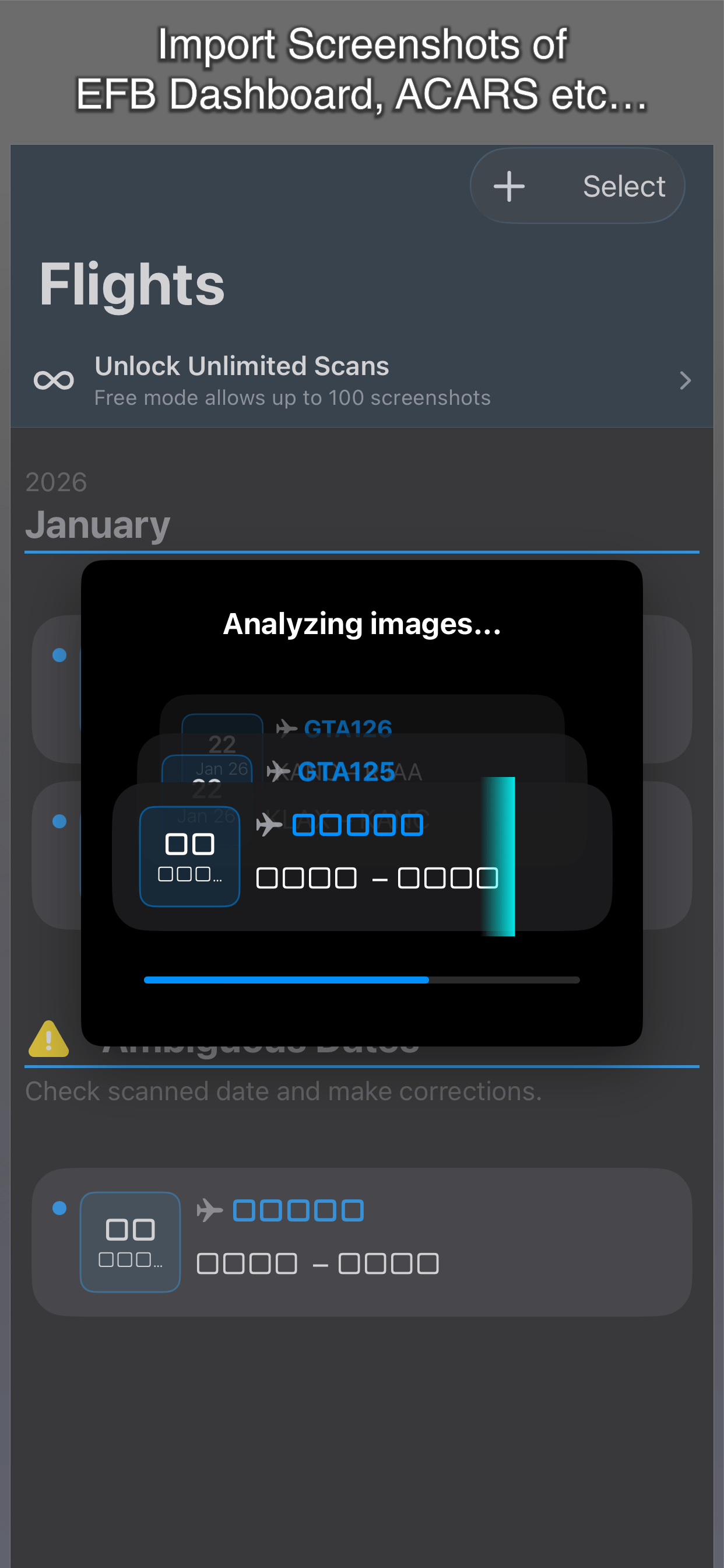
Yes. Tap the + button and select as many images as you want from your photo library. A progress dialog shows each image being processed, with a live thumbnail preview of recent imports. The count of successes and errors is shown at the bottom. Alternatively, select images directly in your Photos app and use the Share function to add them to EFB Companion.
What happens if I close the app mid-import?
The current image finishes processing cleanly, then the rest are skipped. When the import completes, you’ll get an alert showing how many were saved and how many were not processed. Nothing is corrupted.
Templates
How does the app know which template to apply?
Each template has one or more page anchors — specific text strings that uniquely identify that document type (for example, an app name, a fixed label, or a header). When you import a screenshot, the app searches the detected text for those anchors. If they all match, that template is applied.
What makes a good page anchor?
Choose text that is always present and unique to that document type. Fixed labels and app-specific headers work well. Avoid flight data (airports, tail numbers, times) — those change every flight and will not anchor reliably. The Anchor Quality Gauge in the template wizard shows you a 6-segment indicator that turns green as your selection improves.
A piece of data wasn’t detected — what can I do?
In step 2 of the template wizard, tap the “Find Text” button. This activates a focused OCR mode: tap near the area where the missing text should appear, and the app runs OCR on just that region. Once the text is detected, you can assign it to a data field.
What does the split offer (left / right / full) mean?
When you tap a text observation that contains a separator character (, /, :, -, |), the app asks whether you want the full value or just one side. For example, if OCR reads EFHK/EFTP, you can assign the left side (EFHK) to Departure and the right side (EFTP) to Arrival as two separate fields.
Can I reorder the fields in a template?
Yes. Open the template editor, then long-press any field row and drag to reorder. The order controls the column order in CSV exports.
What happens to my data if I delete a template?
The app warns you before deleting that existing data associated with that template will be affected. The underlying screenshots remain, but the field data extracted by that template is lost.
OCR Results & Field Editing
What do the colored badges on list rows mean?
Badge
Meaning
🔵
Newly imported, not yet reviewed
⚠️
One or more data fields have a format issue
Successfully exported at least once
This screenshot appears to be a duplicate of another
How does duplicate detection work?
When a screenshot is imported, the app computes a fingerprint of the image. If it matches an existing fingerprint, the new screenshot is automatically flagged as a duplicate. You can quickly select all duplicates via the Select menu and delete them in one go.
How do I select and delete multiple screenshots?
Tap Select in the toolbar to enter selection mode. Tap screenshots to toggle their selection. The Select menu also offers smart filters: Duplicates, Exported, Not Exported, Flagged, and Unflagged. When you have a selection, the bottom toolbar shows Delete and Export buttons.
Exporting
What export formats are available?
CSV File — a standard comma-separated file you can open in any spreadsheet app or import into a logbook system. Exported via the system share sheet (Files, Mail, AirDrop, etc.).
LogTen Pilot Logbook — if LogTen is installed, the app constructs a deep link and sends the flight data directly to LogTen for entry into your logbook.
Does the app remember what I’ve already exported?
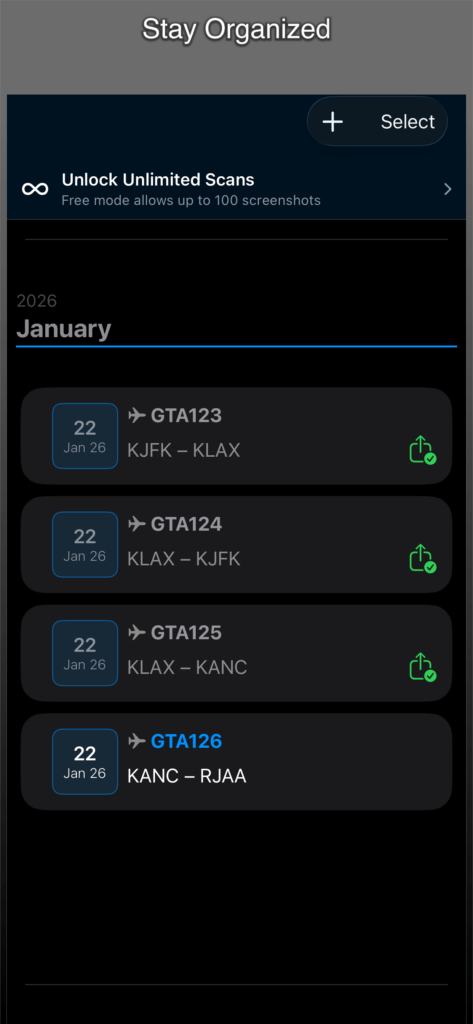
Yes. Each screenshot tracks its export history. Once exported, it shows a green checkmark badge. The Not Exported smart filter lets you quickly find items that still need to be exported.
Tips
Process similar screenshots together. If you have a batch of screenshots all from the same app, import them all at once. After the first one creates a template, the rest are handled automatically.
Use the Anchor Quality Gauge. Don’t rush past step 1 of template creation. A green gauge means the app can reliably identify this document type — yellow or red means it may misfire on future imports.
Review flagged fields before exporting. Orange warnings indicate fields that may contain incorrect data. A quick review before export keeps your logbook accurate.
Optional fields with defaults are useful for fixed values. If a field like “Aircraft Type” is always the same for a given template, mark it as optional and set a default value. It will be populated automatically without needing to appear in the screenshot.